Context management
What is the Context Window?
Context window = the amount of space Claude can hold in its memory
- E.g.: Whenever you enter a prompt, Claude reads a file, runs a tool call, or receives a tool call result, it’s all adding to the context window.
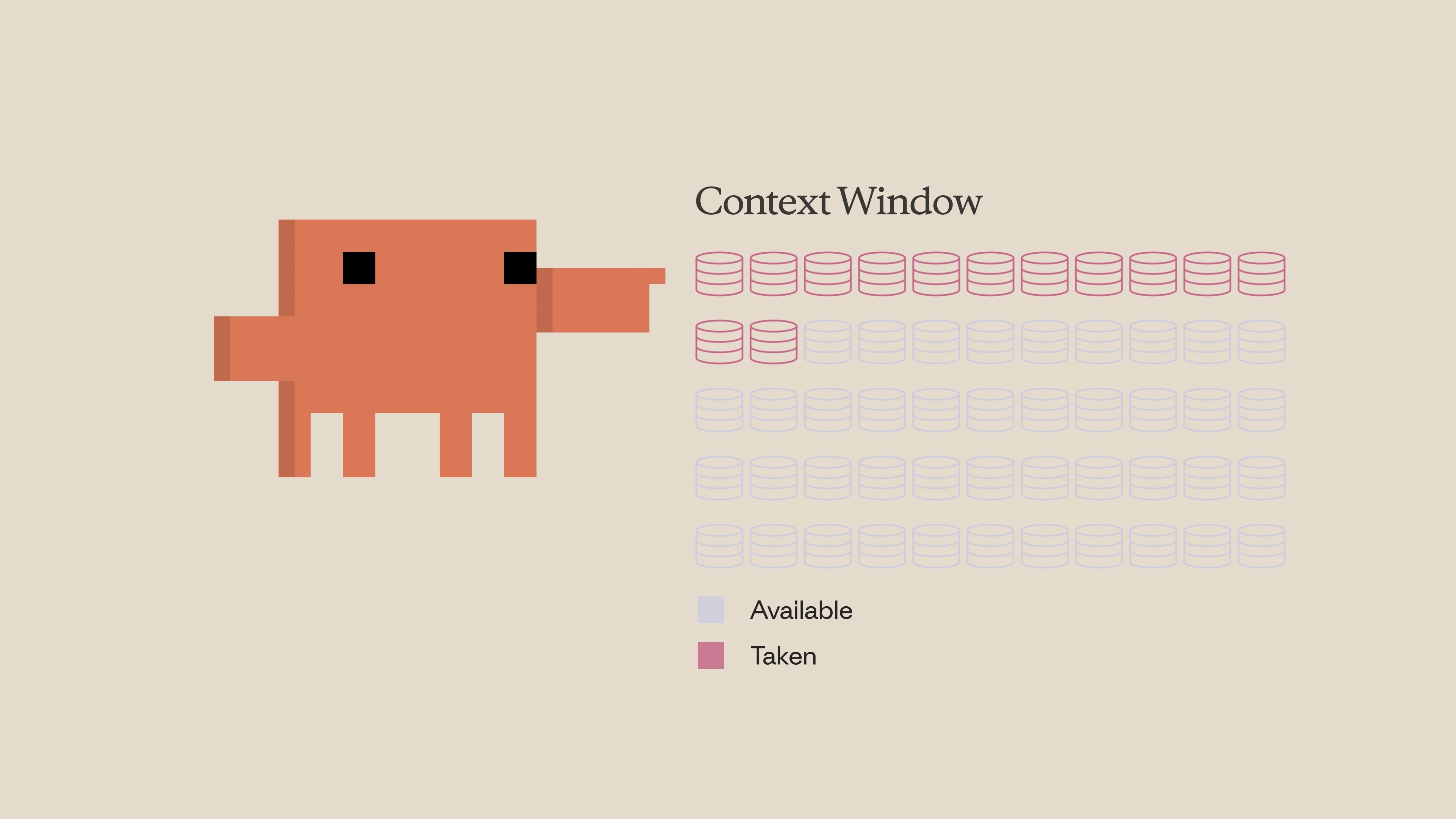
What Happens When Context Fills Up
When you approach the limit, the context window is automatically compacted.
- Compaction summarizes important details and removes unnecessary tool call results to free up space.
- Note that this process can potentially lose details.
Commands
| Command | What it does | When to use |
|---|---|---|
/context | Check the state of your context | When you want to get a high-level overview of your context size, the categories taking up the most space, and a visual graphic showing the breakdown. |
/compact | Compacts everything up to that point. | When you want to free up context space while keeping a memory of what you previously worked on. Example: when you’re working on a specific feature and running up against the context limit but need to continue. |
/clear | Removes everything | If you want to completely start from scratch with no memory of the previous session. For things you want Claude to remember across sessions, put them in your CLAUDE.md file so it doesn’t have to rediscover things from scratch. Example: when you want to start a new feature. You don’t want the previous conversation to introduce bias into something new. |
Tips for Saving Context Space
Be specific.
A vague prompt might seem smaller, but it actually costs more context in the long run. Without clear instructions, Claude is forced to explore your codebase more and do its own reasoning — which takes up far more context space than a detailed prompt would.
Manage your MCP servers.
MCP servers load all of their available tools into context by default, even when you’re not using them. If you have servers configured for things unrelated to the current project, consider turning them off. You can also try “Skills,” which work similarly to MCP servers but don’t load everything into context upfront.
Use subagents.
Subagents run in parallel with your main agent but have a completely separate context window. For tasks where you only need the answer — like “where are the authentication endpoints located?” — a subagent does the work and returns just a summary to your main agent, keeping your primary context clean.