The Server Inspector
When building MCP servers, you need a way to test your functionality without connecting to a full application. The Python MCP SDK includes a built-in browser-based inspector that lets you debug and test your server in real-time.
Starting the Inspector
Make sure your Python environment is activated
Run the inspector with:
mcp dev mcp_server.pyThis starts a development server and gives you a local URL (usually
http://127.0.0.1:6274). Open this URL in your browser to access the MCP Inspector.
Using the Inspector Interface
Look for these key elements:
- A Connect button to start your MCP server
- Navigation tabs for Resources, Tools, Prompts, and other features
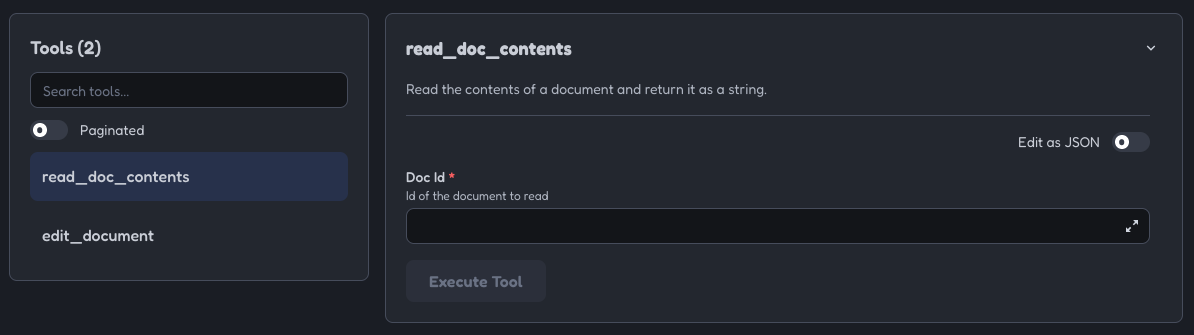
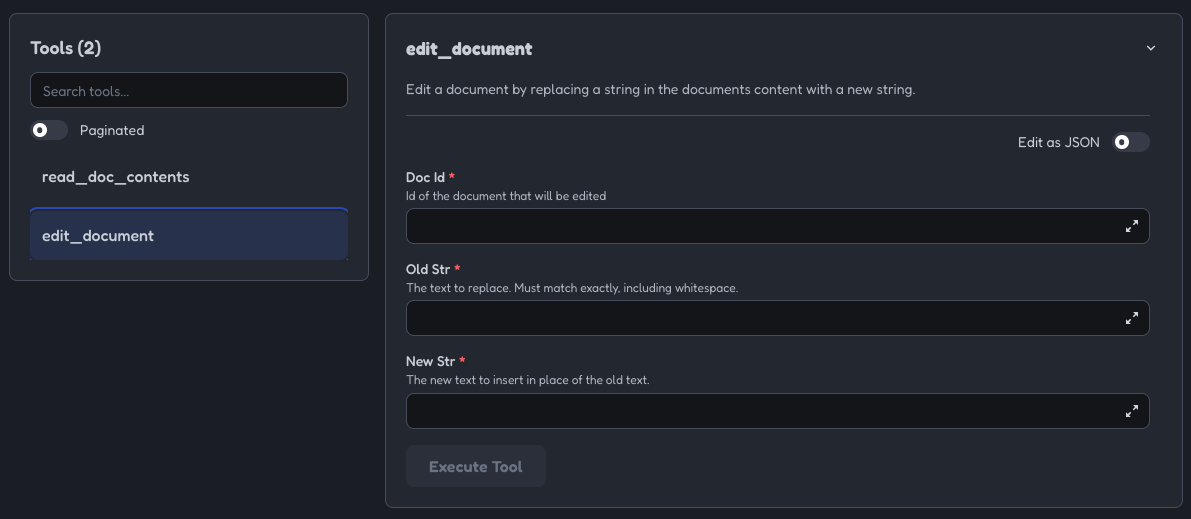
- A tools listing and testing panel
The inspector interface is actively being developed, so it may look different when you use it. However, the core functionality remains consistent.
Testing Your Tools
Navigate to the Tools section and click “List Tools” to see all available tools from your server. When you select a tool, the right panel shows its details and input fields.
Development Workflow
The MCP Inspector becomes an essential part of your development process. Instead of writing separate test scripts or connecting to full applications, you can:
- Quickly iterate on tool implementations
- Test edge cases and error conditions
- Verify tool interactions and state management
- Debug issues in real-time
This immediate feedback loop makes MCP server development much more efficient and helps catch issues early in the development process.